Showing posts with label CAVE. Show all posts

Friday, September 23, 2016

Youtube 360 비디오 제작 방법


Youtube 360 Video 키워드로 찾아 들어오시는 분들이 많은 것 같아서 좀 더 상세하게 방법을 적어 볼까 합니다.

최적화된 방법은 아니고, 간단하고 직관적으로 만들어본 것이기 때문에 좀더 고급 용도로 사용하시기 위해선 유료 에셋(예를 들어 이것, 저도 써보지는 못했습니다.)을 쓰시는 것이 좋습니다.

개발 동기는 몰입형 가상현실 시설을 위해서 파노라마 렌더링 셰이더를 만든 것이고, 원래 여기에서는 대략 가로 180도, 세로 50도 정도의 시야각만이 필요해서 3대의 카메라만을 사용하는 셰이더를 만들었습니다.

여기서 6개로 확장하는 것은 크게 어렵지 않습니다. 아래는 제가 만든 셰이더 입니다.

Shader "Unlit/MyPanoEntireOrtho"
{
 Properties
 {
  _Center("Center", 2D) = "white" {}
 _Left("Left", 2D) = "white" {}
 _Right("Right", 2D) = "white" {}
 _Top("Top", 2D) = "white" {}
 _Bottom("Bottom", 2D) = "white" {}
 _Back("Back", 2D) = "white" {}
 
 }
  SubShader
 {
  Tags{ "RenderType" = "Opaque" }
  LOD 100

  Pass
 {
  CGPROGRAM
#pragma vertex vert
#pragma fragment frag
  // make fog work
#pragma multi_compile_fog
#pragma target 3.0

#include "UnityCG.cginc"

 struct appdata
 {
  float4 vertex : POSITION;
  float2 uv : TEXCOORD0;
 };

 struct v2f
 {
  float2 uv : TEXCOORD0;
  UNITY_FOG_COORDS(1)
   float4 vertex : SV_POSITION;
 };

#define PI 3.141592653589793
#define HALFPI 1.57079632679

 sampler2D _Center;
 sampler2D _Left;
 sampler2D _Right;
 sampler2D _Top;
 sampler2D _Bottom;
 sampler2D _Back;
 float _VFOV;
 float4 _MainTex_ST;

 v2f vert(appdata v)
 {
  v2f o;
  o.vertex = mul(UNITY_MATRIX_MVP, v.vertex);
  o.uv = v.uv;
  return o;
 }

 
 fixed4 frag(v2f i) : SV_Target
 {
  //half4 texcol = tex2D(_MainTex,i.uv);

  //Image texture coord --> lat, lon angle
  float latDeg = -180 + i.uv.x * 360;
  float lonDeg = -90 + i.uv.y * 180;
  float latRad = latDeg*PI / 180;
  float lonRad = lonDeg*PI / 180;

 //lat, lon --> unit sphere xyz
 //View dir = (1,0,0)
 float3 vec = float3(1, 0, 0);
 float3x3 rotLat = float3x3(cos(latRad), -sin(latRad), 0, sin(latRad), cos(latRad), 0, 0, 0, 1);
 float3x3 rotLon = float3x3(cos(lonRad), 0, sin(lonRad), 0, 1, 0, -sin(lonRad), 0, cos(lonRad));
 float3 rot = mul(rotLon, vec);
 float3 SphereXYZ = mul(rotLat, rot);

 //If ray hits image(center,left,right) plane, assign that value
 //Center 평면과 접점(X = 1)
 //if (SphereXYZ.x < 0) return half4(0, 1, 0, 1);

 float3 fVec = SphereXYZ / SphereXYZ.x;
 float3 lVec = SphereXYZ / -SphereXYZ.y;
 float3 rVec = SphereXYZ / SphereXYZ.y;
 float3 bVec = SphereXYZ / -SphereXYZ.z;
 float3 tVec = SphereXYZ / SphereXYZ.z;
 float3 backVec = SphereXYZ / -SphereXYZ.x;

 if (abs(fVec.y) <= 1 && abs(fVec.z) <= 1 && SphereXYZ.x >= 0)
 {
  float pU = fVec.y / 2 + 0.5;
  float pV = -fVec.z / 2 + 0.5;
  return tex2D(_Center, float2(pU, pV));
 }

 if (abs(lVec.x) <= 1 && abs(lVec.z) <= 1 && SphereXYZ.y < 0)
 {
  float pU = lVec.x / 2 + 0.5;
  float pV = -lVec.z / 2 + 0.5;
  return tex2D(_Left, float2(pU, pV));

 }

 if (abs(rVec.x) <= 1 && abs(rVec.z) <= 1 && SphereXYZ.y >= 0)
 {
  float pU = -rVec.x / 2 + 0.5;
  float pV = -rVec.z / 2 + 0.5;
  return tex2D(_Right, float2(pU, pV));

 }

 if (abs(bVec.x) <= 1 && abs(bVec.y) <= 1 && SphereXYZ.z < 0)
 {
  float pU = bVec.y / 2 + 0.5;
  float pV = -bVec.x / 2 + 0.5;
  return tex2D(_Top, float2(pU, pV));

 }

 if (abs(tVec.x) <= 1 && abs(tVec.y) <= 1 && SphereXYZ.z >= 0)
 {
  float pU = tVec.y / 2 + 0.5;
  float pV = tVec.x / 2 + 0.5;
  return tex2D(_Bottom, float2(pU, pV));

 }

 if (abs(backVec.y) <= 1 && abs(backVec.z) <= 1 && SphereXYZ.x < 0)
 {
  float pU = -backVec.y / 2 + 0.5;
  float pV = -backVec.z / 2 + 0.5;
  return tex2D(_Back, float2(pU, pV));

 }

 return half4(0, 1, 0, 1);
 
 }
  ENDCG
 }
 }
}

쓰잘데기 없이 깁니다만 간단히 요약하면 결과 텍스처의 각 uv좌표를 가지고 위도와 경도를 계산하고, 그 위도 경도에 해당하는 픽셀값이 Center/Left/Right/Top/Bottom/Back 중 어떤 이미지에 담겨있는지 판별하고, 해당 이미지의 uv좌표로 변환해서 픽셀값을 샘플링 하는 것입니다.

이제 이 셰이더를 유니티에서 활용하려면, 셰이더를 asset에 추가하고, 새로운 material("Pano"로 이름짓겠습니다)을 만들어서 Unlit/MyPanoEntireOrtho 셰이더를 할당해줍니다.

그리고 6개의 Render Texture (Center/Left/Right/Top/Bottom/Back)를 만들어줍니다.

유니티의 Scene에서는 1개의 GameObject("PanoCam"으로 이름짓겠습니다.)와 6개의 카메라를 만들어주고, Field of view는 90으로 잡아줍시다. 그리고 6개의 카메라를 PanoCam의 자식으로 달아줍니다. 각 카메라의 Euler Angle은 아래와 같습니다.

Front : [0,0,0]
Left : [0,270,0]
Right : [0,90,0]
Top : [270,0,0]
Bottom : [90,0,0]
Back : [0,180,0]

그러면 아래 그림과 같이 6개의 카메라가 전 방향을 커버하게 됩니다. 이제 각 카메라의 Target Texture에 아까 만들었던 6개의 Render Texture를 하나씩 할당해 줍니다.


그리고 나서 Render Texture들을 끌어다 "Pano" Material의 텍스처들에 할당해주면 아래와 같은 그림을 보실 수 있을겁니다.


이렇게 하고나서 "PanoCam" GameObject를 움직여보면 Material이 바뀌는 것을 보실 수 있습니다.

이제 마지막으로 이 Material을 최종적으로 화면에 뿌려주어야 합니다. Graphics.Blit을 사용하셔도 되는데, 저는 보통 간단하게 물리적으로 해결합니다.

추가로 카메라를 하나 더 만들고("MainCam"이라고 명명), Plane을 하나 만들어줍니다. MainCam의 Projection은 Orthographic으로 하고, size는 5로 해줍니다. Plane은 "MainCam"의 자식으로 놓고, 위치는 [0,0,1], Euler Angle은 [90,180,0], Scale은 [1.777777,1,1]로 해줍니다. 16:9 화면비 기준입니다.

그리고 나서 Plane의 Material로 "Pano" Material을 해 주시면 이제 게임 프리뷰에서 16:9 화면에 꽉 차게 파노라마 이미지가 나올 것입니다.


이제는 빌드 후 실행을 하기만 하면 스크린 캡처를 통해서 360 영상을 만들 수 있습니다.

여유가 좀 되신다면, 원본 글에도 적었던 AVPro Movie Capture 에셋을 사용하는 것이 가장 좋습니다. 특히 화면 해상도를 올리고 싶다면 거의 필수입니다. 고해상도 영상 녹화가 가능하도록 하는 모듈을 직접 만들어 보고 싶지만 잘 모르는 분야라서 쉽지 않을 것 같네요.

아니면 지금 보여드리는 예제 영상에서 제가 한것처럼, Fraps, oCam, Camtasia 등 스크린 캡쳐 프로그램을 사용하셔도 됩니다. 아래는 메타데이터 없이 유튜브에 업로드된 동영상입니다.

이제, 360 영상을 유튜브에서 볼 수 있도록 하기 위해 메타데이터를 추가해 주어야 합니다. 여기의 2번에 보시면 맥과 윈도우용 프로그램을 다운로드 할 수 있습니다.

다운로드 후에 프로그램을 실행해 보시면 바로 사용법을 아실 수 있습니다. Open으로 캡처한 영상을 불러오고, Spherical에 체크 해준 후에 Save as하여 저장하시면 됩니다. 아래는 성공적으로 메타데이터가 추가된 모습입니다.


이제 유튜브에 영상을 게시하시면 아래와 같이 360도 영상을 볼 수 있습니다. 이상하게 갑자기 제 컴퓨터에선 크롬을 통해서는 잘 안보이네요. 익스플로러에서는 잘 보입니다.


Friday, March 18, 2016

Panoramic Rendering for CAVE facility

Overview


  • We have new CAVE in our lab consisted of three affordable home projectors-have low ANSI Lumens with full HD resolution, and screen that covers 180 degree FOV in horizon with spherical surface.


Screen configuration (right picture is top view)
  • We decided not to spend the time or budget for synchronization of clustered rendering. Instead, we installed Quadro to our rendering node.
  • Actual dimensions of a screen we measured and installed picture is shown below. You may notice the black cloths are attached on the screen. Because our projector have short throw distance, installation guys decided not to use some part of the screen. In diagram, that part was drawn like those covers same arc length in top part and bottom part, but actually it is not. I will discuss about it in later post. In this post, I ignored the asymmetry.
  • Actual radius is about 2.5m and vertical FOC is about 48.91 degree.
Picture of the installed screen and projectors


Warping and edge blending

  • Warping and edge blending is necessary for multi-projector system. You may want to get more information in http://paulbourke.net/
  • The installation company did this job for us using their calibration software and hardware. We don't have much things to do up to this point.
  • The picture before/after warping and edge blending is shown below.
(top) Before edge blending and warping (bottom) After edge blending and warping
  • After warping and edge blending is done, the image generated by our rendering node properly mapped to screen. The relation between four corners of rendered image and of screen is like below diagram, if we assume 100% accurate warping.


Panoramic rendering for 180 degree horizontal FOV


  • Unfortunately, this is not the end of the process if you want deliver the final image to user properly.
  • The first problem is that the image generated by single perspective camera cannot cover 180 degree FOV. Let's say we generate image has 5760x1080 pixels while did not changed default FOV set in Unity3D's camera (60 degree vertical FOV). Then by defined aspect ratio, rendered image contains only pixel information of about 144 degree horizontal FOV.
  • You can imagine how the image on our screen can be distorted by the horizontally "stretched" mapping, by diagram below.

Solution : Panoramic rendering

  • To solve this problem, we need panoramic rendering using several cameras.
  • Simply, we need the final image that has pixel information of [-90 deg, -24.46 deg] from camera on [0,0] uv coordinate and [90 deg, 24.46 deg] on [1,1] uv coordinate.
  • Usually you may want to use cubemap and map it to single image using equirectangular projection. But I decided to implement custom shader for study and I guess there should be performance problem by rendering 6 images instead of 3 that is all what we need to cover 180 and 48.91 deg. Also we can optimize the resolution by not producing power of two resolution texture that Unity is forcing for cubemap.
  • So I have three camera in my scene(front/left/right) each renders scene of 90 by 90 degree region. From those three rendered texture, pixel values of final 5760x1080 image is calculated by shader with process below.
    • Calculate corresponding latitude and longitude angle from UV coordinate of final image
    • Convert latitude and longitude angles to unit direction vector
    • Extend vector(ray) to front/left/right image plane
    • If ray hits, calculate local UV coordinates for hit position in front/left/right image plane
    • Return tex2D(front/left/right image , local UV coordinate), which is pixel value

Result video clip

  • Left quarter shows 3D scene and camera(red cube) and right image shows rendered final image

Adjusting projection point to actual eye position

  • Above final image seems okay, but we can also consider the actual user's eye position in the facility.
  • As you can see in the diagram below, the altitude of user's eye position is not located at the center of screen sphere.

Solution : Changing projection origin

  • We can calculate asymmetric upper and lower viewing angle(18.74 deg, 38.36 deg) from screen radius(2.5m), screen sphere to ground distance(1.25m), half of vertical FOV from sphere origin(24.46 deg) and actual eye position to ground distance(1.70m).
  • The process of panoramic rendering is similar with previous one. Changed part is the map between UV coords and lat, lon angle and changed origin to the actual eye position.
Diagram of actual eye position, ground plane and projection screen
Changed uv-lat,lon mapping

  •  Another change is that now we need bottom camera since now bottom part is shown a little due to the extension of lower viewing angle from 22.46 deg to 38.36 deg. Adding pixel information from bottom image to panoramic image is similar with others(front/left/right).
Final image from adjusted projection point and front/left/right image. Green pixels shows no pixel information exists
Filled pixel information from adding bottom image

Result video clip


  • You can see the asymmetry of viewing angle between upper and lower in vertical.

Observing result with application

  • We have excavator simulator for validation of safety control algorithm. Below picture shows the application rendered on screen 1) without any processing, 2) with panoramic rendering and 3) with panoramic rendering and eye position adjusting.
  • I take pictures using panorama capturing function on my smart phone. Three results are very different if you stand in front of the projection screen but it may seems not that dramatic in took pictures below. But I cannot find other better way to show the result.
Scene without any processing. 144 HFOV, 60 VFOV

Scene with panoramic rendering. 180 HFOV, 48.91 VFOV
Scene with panoramic rendering and eye position adjustment. 180 HFOV, 57.1 VFOV 
  • You may notice the effect of eye position adjustment by seeing the building in the 3D scene. Picture was taken right in front of my eye position.

The building in the left side in panoramic rendering scene
The building in the left side in panoramic rendering scene with eye position adjustment


Saturday, October 4, 2014

Data visualization - Bibliography? (※5MB GIF included!!)

Data visualization of papers & keywords 

  • Developed as a part of convergence research contest.
  • Our team members decided to propose the concept for analyzing, visualizing and exhibit the research relationships in our institute.
  • We started from extracting the keywords in papers published in recent 5 years from our institute.
  • Because of the lack of time, I "conceptually" developed an application to show how the relationships can be visualized.

Data visualization, 2D or 3D? 

  • The D3.js is now getting popular for most type of data visualization in 2D.
  • 2D data visualization has advantages on concise expression and easy perception to users.
  • On the other hand, the 3D visualization is needed when we want to provide "spatial" sort of experience to user.
  • Usually the type of data we focused tends to be visualized in 2D, but we(actually I,) tried to visualize it in 3D for future.
  • For instance, LBS or AR use.
  • Of course the effective visualization approach should be discussed more in later.

Development of a demo application

  • Like always, Unity3D is very useful when you need to develop an application in very short time. 
  • The concept of my visualization is a planetarium, which each keyword is floating on the dome shaped sky. 
  • Application includes relationship visualization functions and search functions. 
  • Also the titles, authors and research fields can be seen if user selected certain keyword to get into the "Focus Mode". 
  • Textures are simply made from MS PowerPoint. 
  • Source database exists in Dropbox and read through WWW class at first time, but I changed it into TextAsset resource since the data is not going to be dynamically changing. 
  • Again, the multi-channel visualization can be easily done though the multi-channel module I have.

The scene captured in 3rd person view


Selecting the keyword in 1st person view
Relationship is indicated with line 

Searching the keyword
Searching result is indicated with simple animation with different texture


 Focus Mode.
Specific information related with "Lithium-Ion Battery" can be seen in here

Multi-channel visualization

Discussion? 

  • As I mentioned, the effectivess of visualization should be improved in so many ways.
  • Location based service application using GPS data can be easily developed, but the performance should be improved when using it with smart device.
  • There's not much "analysis" of the data in demo application. Data analysis method in bibliography fields should be applied.


Wednesday, July 23, 2014

Large-scale visualization of a simulation data using Unity3D

Simulation Visualization Framework

  • The 3D visualization can help the decision making process which usually involves diverse simulation data.
  • We studied to develop efficient visualization framework, especially for the warfare simulation several years ago.
  • The framework has been proposed consisted of 7 modules and interfaces.
  • For efficient implementation, we used Unity3D which allows faster development of an application and cross-platform distribution.
  • Detailed information can be seen in HERE

Simulation of a Capsized Ship, and Lifting Process

  • There was a serious disaster in Korea. (related article)
  • After few weeks, the ORIN Lab performed simulation to validate the reason of capsizing.
  • And this data, should be visualized as soon as possible for publishing.
  • So we reuse the framework above, and replacing only the "Data Processing" module to change the processable data from warfare simulation to capsizing simulation.
  • As a result, a day was enough to implement the application.

Extending the Application to Large-scale Visualization

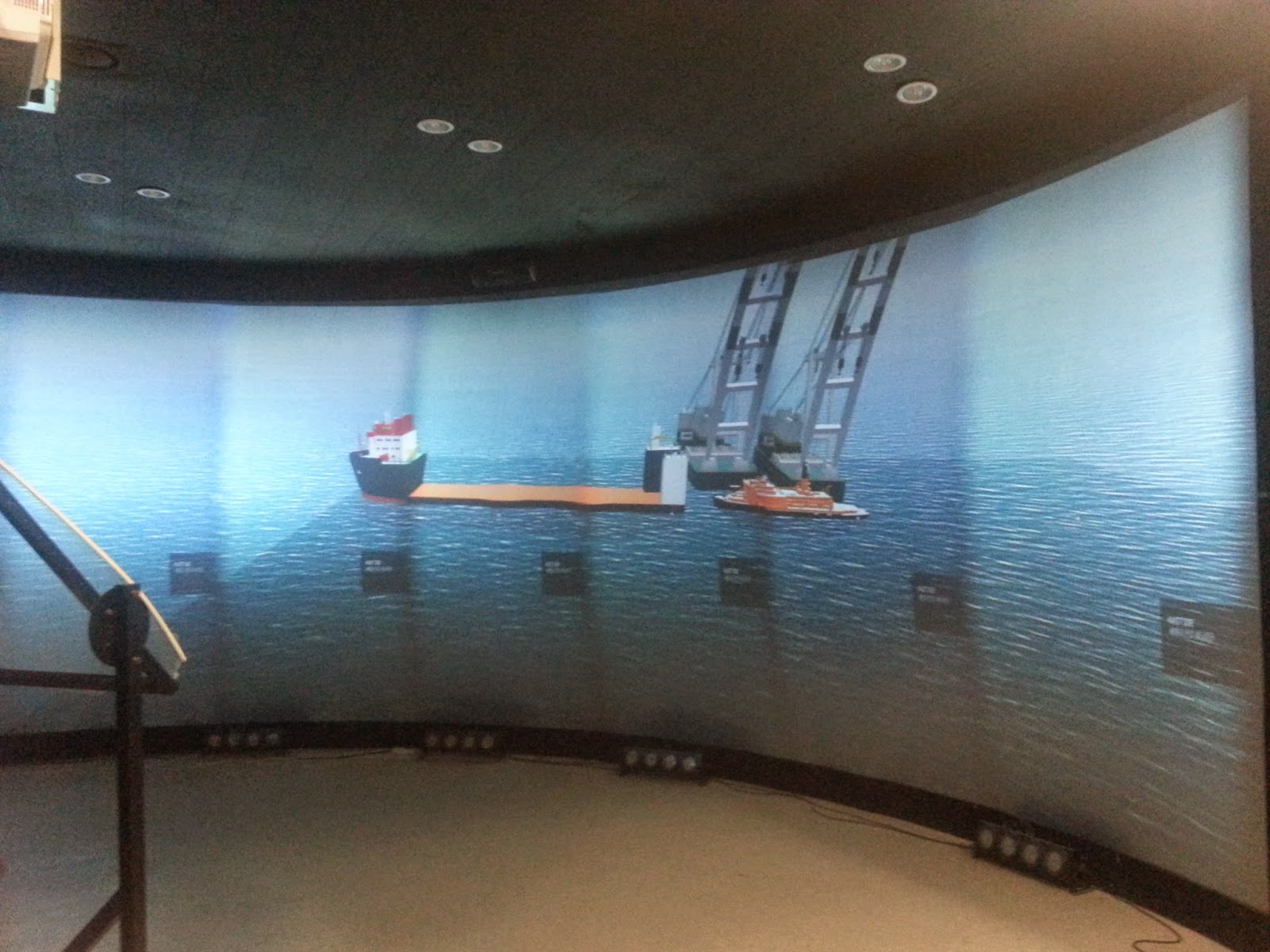
  • Today, I converted the application described above, which is for standalone use, into large-scale visualization.
  • This also takes fairly short time(a day), since I already developed "Multi-Channel" module for our facility.(small grey box in the first figure)
  • So all I have to do is just plug the module in my Unity3D project and build it to install it in CAVE facility.
  • Although the GUIs are not handled properly. It is not easy to remove it in client without modifying the script code...